HDSKW2S* Part 2: Accessible name computation
(*How do screen readers know what to say)
In my last post, I explained how screen readers know what to say and that there are 3 main attributes that affect it: Name, Role, and Value. The role and the value are fairly static and easy to predict. But the accessible name can be derived from 5 different attributes.
What is the accessible name?
Screen readers and screen reader users don’t read the words on the screen. They read the words in the document object model (DOM). Not sure what the DOM is, right-click anywhere on this page and select “Inspect”.
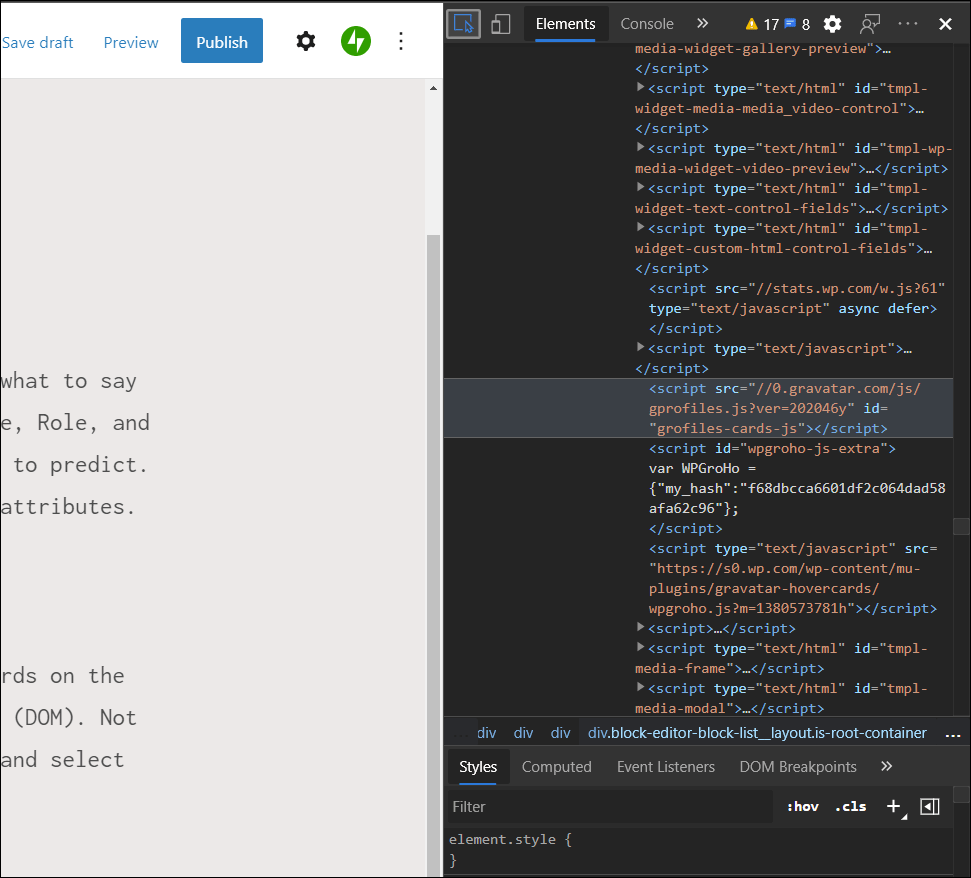
And when the DOM is open, you can hover your mouse over items in the web page and get some accessible information about them. The first thing you’ll notice is the “Name”. And you might also notice that the name is different than the visible label.
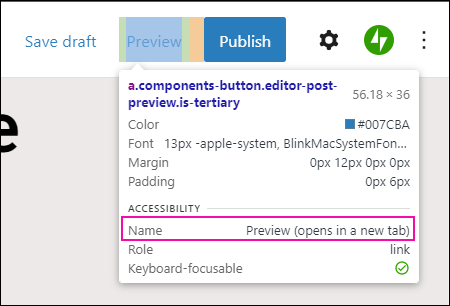
I can tell just by looking, that the someone replaced the “Preview” text with an aria-labelledby “Preview (opens in a new tab).” And the Name is what the screen reader user hears, not the visible label. Combined with the role, a screen reader would narrate this as “Link. Preview (opens in a new tab).”
How do I know that just by looking at this information? The accessible name computation! As I said earlier, the accessible name computation derives the name from 5 possible attributes. If one doesn’t exist, it moves on to the next one. And if it can’t figure out the name, then it will say “Element undefined” or something like that — depending on your screen reader software.
Here are the 5 attributes that the accessible name computation can use to derive the name and the order of precedence:
- Aria-labelledby – aria-labelledby is used to replace existing visible text. In that example earlier, that’s how I knew they’d used an aria-labelledby.
- Aria-label – use an aria-label when visible text doesn’t exist. For example, using icons in place of text for labels are an example of when to use an aria-label.
- Visible label – this is the text on a form field or button, but it needs to be programmatically associated with the form field or else it won’t get read with the form field. (This happens a lot!)
- Title (tooltip) – you can see the title with hover tooltips. However, you need to be careful when using title tooltips because these can also be used for computing the element’s description.
- Placeholder – If the accessible name computation can’t find anything else, it will use the placeholder text for the accessible name. (Why can’t placeholder/watermark text in fields be used as the field label?)
And given that the accessible name has 5 different attributes to pull from, it’s probably a surprise that this is one of the top accessibility bugs.
Accessible description
The last piece HDSRKW2S is the accessible description, which is part of the accessible name computation. Descriptions provide additional information that help users to complete a task. There are two ways to create a description and this is also the order of precedence:
- Aria-describedby – Provides additional information that only screen reader users need to complete the task, because only screen reader users will get this information. We use these to inform about how to navigate the element. Here’s an example of an aria-describedby that I added to a search box: “Suggestions appear as you type. Arrow down for results.”
- Title – You can see the title attribute displayed as a hover tooltip when you hover over things like links and buttons. Use hover tooltips to provide information about the element that every one needs. I always put this tooltip on links that take you away from our website, “Article opens in a new tab/window.”
But remember that the title is also used for the accessible name computation so if you want this to read as a description and not the name, make sure you’re using a different attribute to compute the name.
When to use ARIA text?
Use ARIA text when the information provided by the HTML isn’t good enough. Which happens a lot! Ask yourself these questions and if the answer is no, then you probably need ARIA text:
- Is there enough information for the text to stand alone?
- Are there any unsafe characters in the UX?
- Is information split between two separate strings?
- Does the link text inform the user what type of link is opening and what will happen when it opens?
- Is any information hidden by default (see more options at the end of a list)?
Stay tuned…
In my next postings, I’m going to go into detail for each of those questions. Let me know your thoughts or ask a question about accessibility for UX writers.

Andrea Fowler View All →
I’m a user experience writer (more than a UI copy writer) and content strategist in the Seattle area. I design help, training and support features for an IT admin tool. I also consider myself something of an accessibility expert – especially in writing screen reader text.
In my free time I love painting and hiding rocks around Whidbey Island, embroidery, cross stitch, Zen Tangling, and tie-dying. My other hobby is robotics and I’ve got a really cool Pi car. I’m a total geek: I collect Funkos and Playmobil, read hard science fiction and graphic novels. And I don’t ever want to hear you talk smack about Sam and Dean Winchester (Supernatural 4-ever!).
 Words are design
So cool, Andrea! I can’t wait to read the next post.
Becky Montgomery
LikeLike